> ## Documentation Index
> Fetch the complete documentation index at: https://sdk.libratech.ai/llms.txt
> Use this file to discover all available pages before exploring further.
# The chat surface
> The composer, answer modes, voice input, answer actions, and how citations are presented
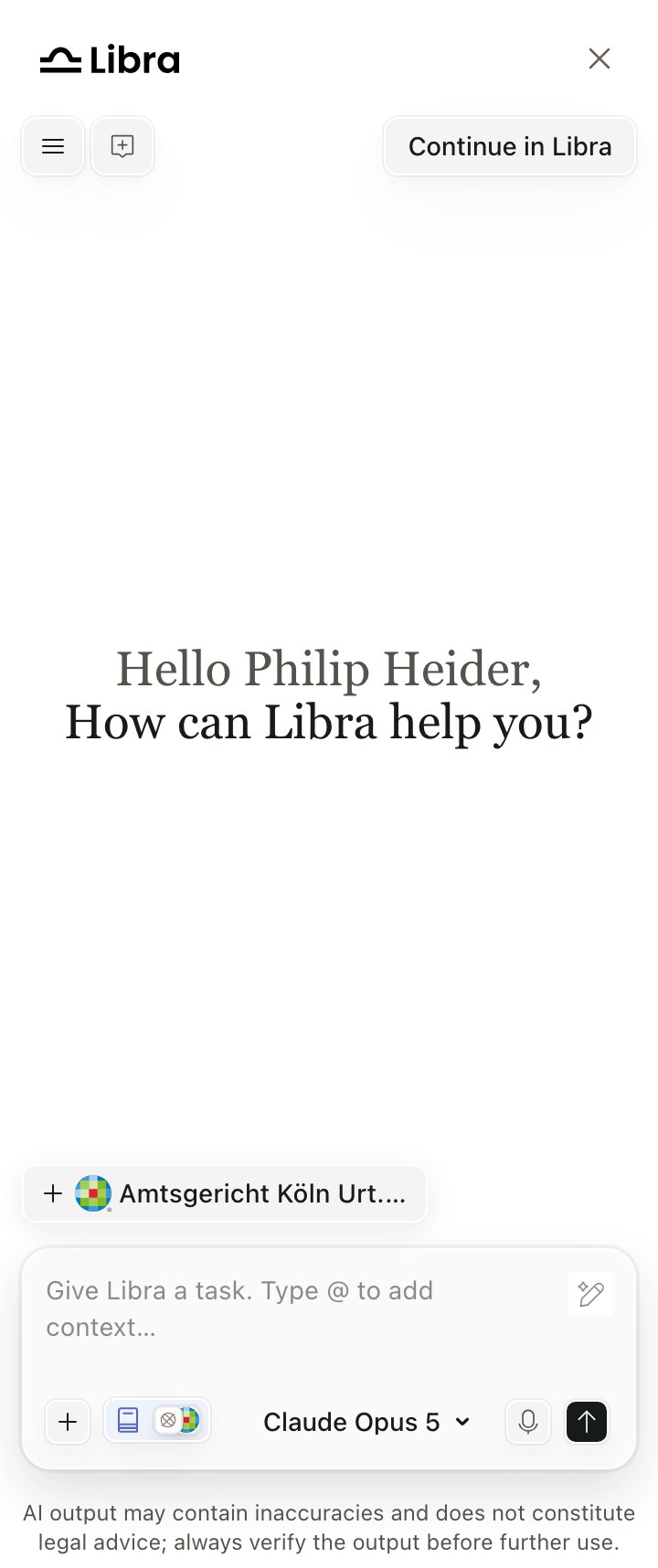
Everything on this page is the Libra chat UI as it renders **inside the embedded widget**. Where the widget deliberately differs from the Libra Workspace, it says so.
## The composer
| Control | What it does |
| --------------- | ------------------------------------------------------------------------------------------------------------------------------------------------------------------------------------------------------ |
| **Tools** (`+`) | Attach, Assistants, Workflows, Current Project, Add context. See [Context and sources](/capabilities/context-and-sources#the-tools-menu). |
| **Research** | Turns research on and picks sources; shows the logos of the active ones. |
| **Model tier** | Standard, Deep Thinking or Fast — see below. |
| **Improve** | Rewrites the user's draft prompt into a better one **without sending it**, so they can review it first. An **Undo** button replaces it afterwards, and disappears as soon as the text is edited again. |
| **Microphone** | Voice input — see below. |
| **Send** | Becomes a **Stop** button while an answer is generating. |
Inside the widget the composer is pinned to its compact layout, so Tools and Research are icon-only at every panel width. See [Panel and placement](/guides/panel-and-placement#width).
## Answer modes
One control in the composer selects how Libra answers. Its accessible name is *Select model tier*, and it always offers three Libra AI tiers:
Best for most tasks. The default.
Complex reasoning and analysis.
Quick, everyday questions.
**Deep Thinking** routes the turn to a reasoning model and skips the planning step, so answers take longer and go deeper. The first time a user picks it, a confirmation dialog warns that complex queries take 2–3 minutes and deep research 5 minutes or more.
Two caveats worth knowing:
* The control's **visible label is not always a tier name.** If the user has enabled *Show Model Selector* in their Libra settings (off by default), the same dropdown also lists individual models, and picking one makes the button read that model's name — for example `Claude Opus 5`.
* The control is **hidden** while an assistant or a workflow is active, and on model-locked deployments.
Deep Thinking is **not** restricted by subscription tier. Older material describing it as a paid-tier feature is out of date — see [Plans and limits](/capabilities/plans-and-limits).
## While an answer is generating
The microphone and send buttons collapse into a single **Stop** button that ends the response where it is.
Progress appears in a card above the answer. Collapsed and running, it reads *Analyzing…* then *Composing answer…*; when finished it reads *Thought for \
 | Control | What it does |
| --------------- | ------------------------------------------------------------------------------------------------------------------------------------------------------------------------------------------------------ |
| **Tools** (`+`) | Attach, Assistants, Workflows, Current Project, Add context. See [Context and sources](/capabilities/context-and-sources#the-tools-menu). |
| **Research** | Turns research on and picks sources; shows the logos of the active ones. |
| **Model tier** | Standard, Deep Thinking or Fast — see below. |
| **Improve** | Rewrites the user's draft prompt into a better one **without sending it**, so they can review it first. An **Undo** button replaces it afterwards, and disappears as soon as the text is edited again. |
| **Microphone** | Voice input — see below. |
| **Send** | Becomes a **Stop** button while an answer is generating. |
Inside the widget the composer is pinned to its compact layout, so Tools and Research are icon-only at every panel width. See [Panel and placement](/guides/panel-and-placement#width).
## Answer modes
One control in the composer selects how Libra answers. Its accessible name is *Select model tier*, and it always offers three Libra AI tiers:
| Control | What it does |
| --------------- | ------------------------------------------------------------------------------------------------------------------------------------------------------------------------------------------------------ |
| **Tools** (`+`) | Attach, Assistants, Workflows, Current Project, Add context. See [Context and sources](/capabilities/context-and-sources#the-tools-menu). |
| **Research** | Turns research on and picks sources; shows the logos of the active ones. |
| **Model tier** | Standard, Deep Thinking or Fast — see below. |
| **Improve** | Rewrites the user's draft prompt into a better one **without sending it**, so they can review it first. An **Undo** button replaces it afterwards, and disappears as soon as the text is edited again. |
| **Microphone** | Voice input — see below. |
| **Send** | Becomes a **Stop** button while an answer is generating. |
Inside the widget the composer is pinned to its compact layout, so Tools and Research are icon-only at every panel width. See [Panel and placement](/guides/panel-and-placement#width).
## Answer modes
One control in the composer selects how Libra answers. Its accessible name is *Select model tier*, and it always offers three Libra AI tiers: